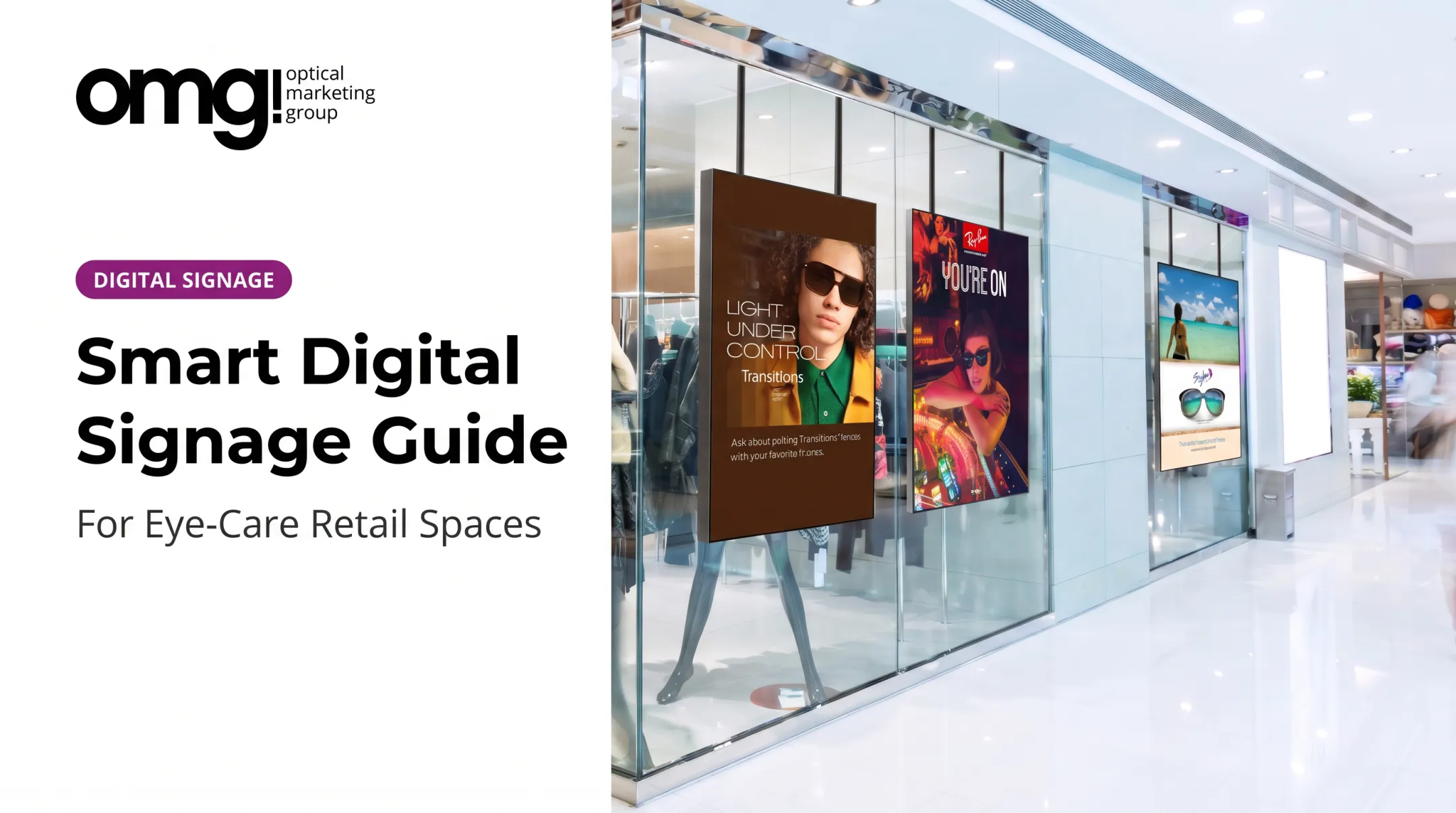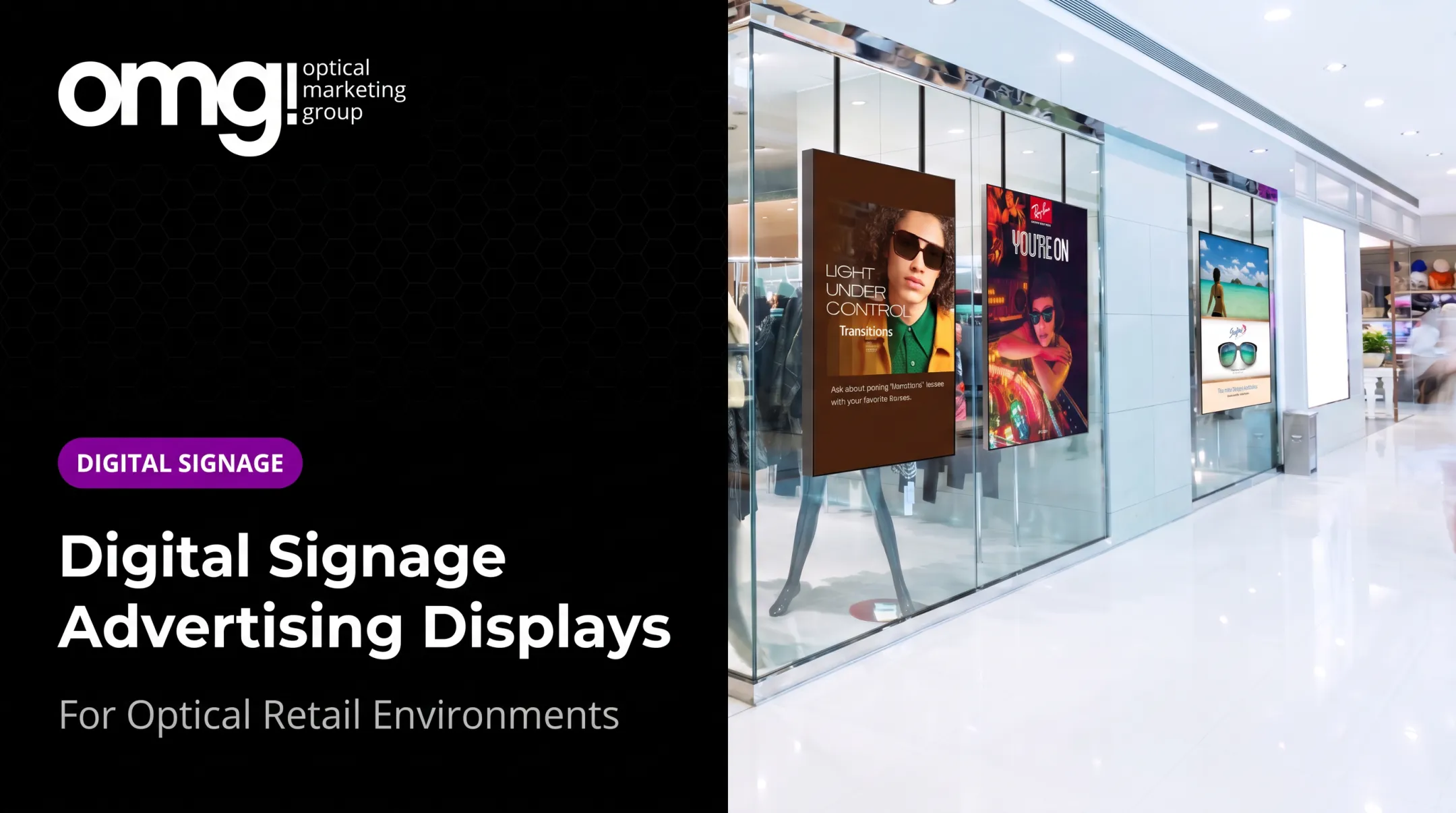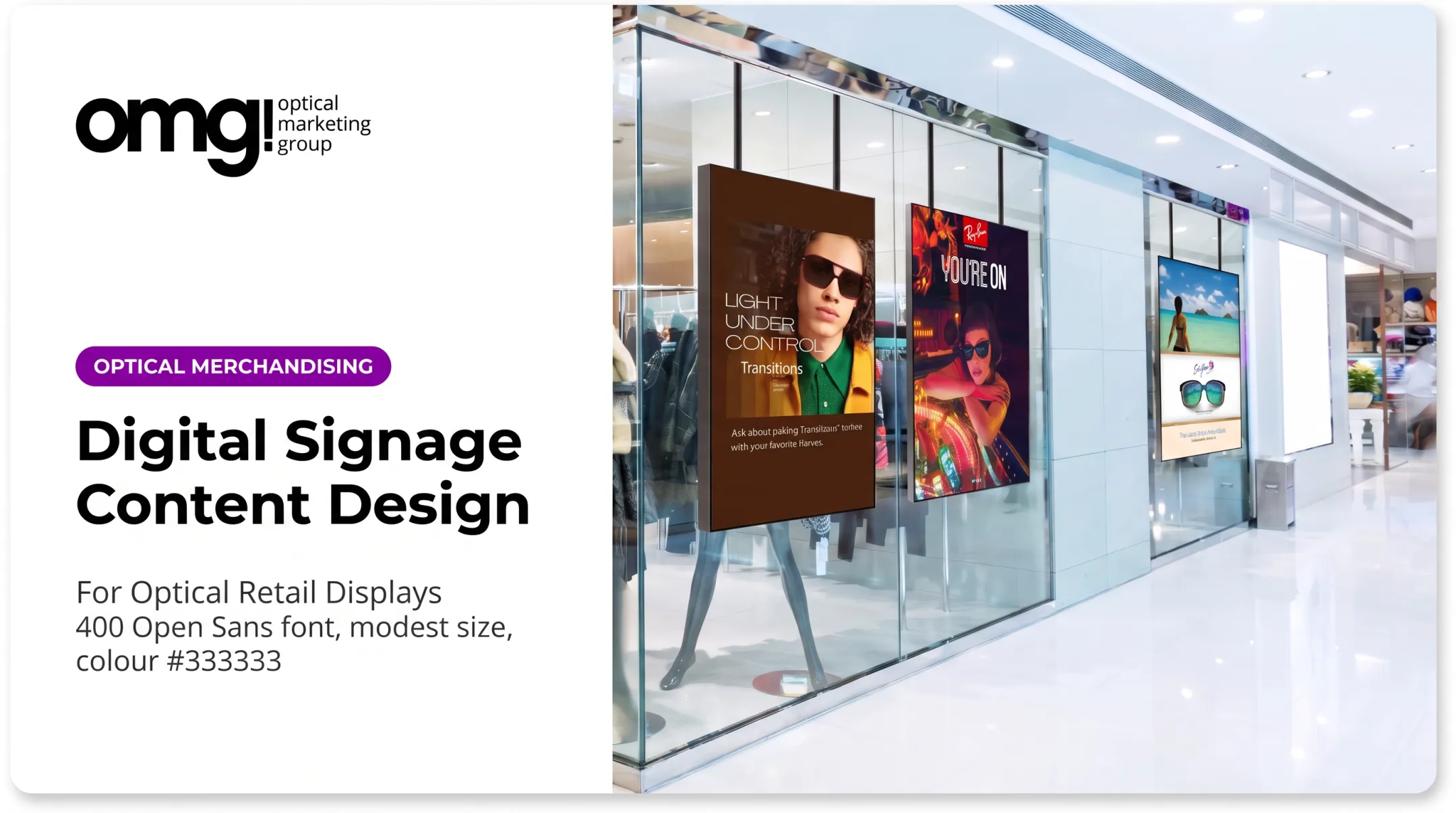

Today's optical patients move through several distinct zones in one visit: the window, the waiting area, the frame boards, maybe a consultation room. Each zone needs its own message. A promotion that makes sense in the window looks out of place next to a styling mirror, and a lens-education video meant for the exam lane has no business playing at the entrance.
Multi-monitor digital signage solves this, but it's not as simple as buying more TVs. Setups range from one signal duplicated across several displays to a fully networked system where each screen runs its own independent playlist.
This guide covers the hardware configurations, software decisions, content planning, and installation steps that make multiple screens actually work together in an eyecare practice, rather than competing with your frame displays and consultations.
Key Takeaways
- Multi-screen signage ranges from simple signal duplication to fully independent, networked playlists per display
- Hardware choice (shared player, splitters, or per-screen players) determines whether content can vary by location
- Commercial-grade displays, not consumer TVs, hold up to all-day operation and come with better warranty coverage
- Content needs a clear role per screen: window, reception, optical floor, and exam lane each serve different purposes
- A staged rollout, starting with one zone, reduces risk before expanding practice-wide
What Is a Multi-Monitor Digital Signage System?
A multi-monitor digital signage system is a coordinated set of displays, media players, network connections, and content management software, all running on a planned schedule rather than playing whatever happens to be plugged in.
There are two basic models:
- Synchronized signage: every screen shows identical content at the same time, useful for a unified brand moment across a storefront
- Networked signage: each screen or screen group runs its own playlist, so the window can advertise a sunglass collection while the optical floor highlights lens upgrades
Where Screens Fit in an Optical Practice
A well-planned system can cover windows, reception, waiting areas, frame displays, consultation rooms, and checkout, all from one managed platform. The Contentlinq Media Player, for example, upgrades an existing TV into a cloud-managed screen running branded playlists, lens demonstrations, or photo-booth content.
Here's the catch: adding screens doesn't automatically create a cohesive experience. Five monitors running five unrelated messages feel chaotic, not polished. You need a shared content strategy and a consistent visual system before you add hardware.
Ways to Connect and Control Multiple Monitors
How you wire and manage your screens determines what content flexibility you actually have. The table below compares the five common configurations.
| Configuration | Best use case | Content flexibility | Cabling | Scalability | Maintenance |
|---|---|---|---|---|---|
| Single PC/player, multiple outputs | 2-4 nearby screens, centralized control | Independent per output (model-dependent) | Direct HDMI/DisplayPort runs | Limited by output count | One point of failure |
| HDMI splitter | Identical content on nearby displays | None — duplicates one signal | Simple, short runs | Low | Low, but no flexibility |
| Wireless signal splitter | Reducing visible cabling | Duplicated signal, like wired splitters | None, but needs line-of-sight | Moderate | Interference-dependent |
| Dedicated player per screen | Independent zones (window vs. floor) | Full independent control | One run per screen | High | More hardware to manage |
| Smart-TV/system-on-chip | Simpler installs, fewer boxes | Depends on CMS/browser support | Minimal, built-in | High | Software update limits apply |
Single Player, Multiple Outputs
A single computer or signage player driving several monitors keeps control centralized: one device to update, one dashboard to check. BrightSign's documentation lists players with two or four HDMI outputs depending on the model, which caps how many displays you can run from one box.
Tradeoffs include cable-length limits on how far screens can sit from the player, and a single point of failure. If that one device fails, every connected screen goes dark at once.
Splitters, Wired and Wireless
HDMI splitters are the budget option for showing the same thing on nearby screens, such as two monitors flanking a reception desk. They mirror a signal; they don't give you separate playlists. Wireless splitters cut down on visible cable runs, but confirm these points before you buy:
- Line-of-sight requirements between transmitter and displays
- How the link handles interference from nearby Wi-Fi
- Actual resolution supported at full distance
Dedicated Players and Smart Displays
A player per screen is the most flexible setup. Each display runs independently, caches content locally if the network drops, and can be managed remotely. It is also more hardware to buy and maintain.
Smart TVs with built-in operating systems (system-on-chip displays) skip the separate player altogether. Confirm the embedded software still receives security updates. Some older smart-TV platforms have lost CMS support entirely as browsers age out.
Commercial player pricing, per ScreenCloud's hardware guide, runs roughly $100-$200 for entry-level units, $200-$400 for midrange, and $400+ for high-end models — categories, not installed-system quotes, so get an itemized number for your actual configuration.
How to Choose Displays, Players, Software, and Connectivity
Start with what the screens need to accomplish, not with a catalog page. A window display built for curb appeal has different requirements than a reception screen meant for quiet orientation, or an optical-floor screen meant to spark frame discovery.
Match the Display to the Environment
Screen size, resolution, and brightness all depend on where the display sits and how far patients stand from it. A window-facing unit needs enough brightness to beat direct sunlight: the 55" Ultra Bright Window TV, for instance, is built for 2,500 cd/m² brightness specifically because storefront glass fights for visibility against daylight.
Commercial-grade construction matters more than most practices assume. According to Samsung Business Insights, professional displays are built for continuous, around-the-clock operation, while consumer TVs are designed for roughly eight hours a day. Running a consumer TV all day can also void its warranty, while commercial units typically carry three-year coverage.

Checklist for display selection:
- Screen orientation (portrait for narrow spaces, landscape for wide walls)
- Viewing angle and glare resistance for the specific wall or window
- Operating temperature range, especially for window installs
- Mounting method and weight capacity
- Commercial-use rating, not a consumer-grade TV
Match the Software to Your Network
The CMS needs to match how complex your screen network actually is. If every screen will show the same thing, simpler synchronized software works. If the window, reception, and optical floor each need different playlists, you need software built for screen grouping, scheduling, and remote updates.
Contentlinq's subscription model illustrates the range: plans start around $17.95-$19.95 per month per device and scale up to an unlimited-device option at $199 per month for a single location, including account setup, training, and support. Compare any platform against these core requirements:
- Can it assign different playlists to different screens or groups?
- Does it support remote updates and offline playback if the internet drops?
- Can staff with different permission levels approve content before it goes live?
- Does it flag a screen or player that goes offline?
Match Players and Connectivity to the Install
Each screen needs a commercial media player compatible with your CMS, with enough storage for offline playback if the network drops. Confirm power, data drops, and mounting paths before install day so displays, players, and cabling go in together.
Contentlinq pairs hardware with subscription-based content management for practices that want a managed path. Always verify current device compatibility, feature set, and pricing directly, since specs and terms change.
Planning Content for Multiple Screens in an Optical Practice
Every screen needs a job. Without one, content drifts toward whatever's easiest to upload rather than what actually helps patients.
Assign Roles by Patient Flow
- Window/entrance screens: curb appeal, seasonal campaigns, a reason to walk in
- Reception screens: orientation, what to expect, brief education while waiting
- Optical-area screens: frame stories, collection themes, lens features, relevant promotions
- Exam-lane content: lens options and clinical information, reviewed before it airs
Decide which messages run everywhere versus which stay local. A synchronized brand launch across every screen reinforces a big moment. Independent playlists keep a lens-coating explainer out of the window, where it doesn't belong.
Build a Repeatable Content System
Approved templates save time and keep screens looking like one brand, not five separate experiments. That means consistent typography, a defined color palette, concise copy, and calls to action that are still legible from across the room.
Digital signage's effect on buying behavior isn't hypothetical. An invidis retail study tracking 237 campaigns and roughly 30 million customer journeys in food retail found an average 8.1% increase in the likelihood of purchasing advertised products.

The effect was strongest for spontaneous purchases and well-known brands. That is food-retail data, not an optical benchmark, but it supports the basic logic: relevant in-store content moves behavior.
Never display patient-identifiable information or unapproved clinical claims on public-facing screens. Route anything touching clinical content through your compliance and legal advisers before it airs.
Multi-Monitor Digital Signage Use Cases for Eyecare and Optical Retail
Window and reception coordination. A coordinated window display paired with a reception screen can carry the practice's brand story, current eyewear lines, and seasonal messaging before a patient even reaches the front desk. At City Optometry in San Francisco, window graphics prompted people to stop, walk in, and ask about the specific frames shown. The practice started keeping those exact frames in stock as a result.
Supporting frame discovery. Screens near frame displays shouldn't replace physical merchandising; they should add to it. A 15-inch interactive retail screen built into a display fixture can run short product stories, collection themes, and styling inspiration while patients browse the boards themselves.
Patient education, reviewed first. Screens can explain lens options, coatings, and eyewear care, or help patients prepare for an appointment. Gig Harbor Eye Care reports that lens demos, a face-shape guide, and a photo booth helped increase sales and patient interest, and meaningfully lifted capture rate through staff and patient engagement. Any clinical content still needs review before it goes live.
Multi-location brand consistency. For optical groups, central teams can push approved brand campaigns to every location while individual practices adapt messaging for local events or inventory. This is where OMG!'s broader approach comes in: pairing digital displays with practice design, graphics, fixtures, and branded signage so screens reinforce a clean, curated retail presentation rather than sitting apart from it. Fewer than 5% of optical retailers have proper signage throughout their facility, which makes specific areas and brands genuinely hard for patients to find.
How to Install, Launch, and Manage the Network
A staged rollout beats buying every screen at once and hoping it works.
- Define objectives: what should each screen accomplish?
- Survey the site: map patient and staff flow, power access, and network coverage
- Confirm connectivity: test Wi-Fi strength before mounting anything; wired Ethernet is worth it if Wi-Fi is crowded
- Select hardware: match displays, players, and mounts to the space
- Create content: build to your templates, not from scratch each time
- Test playback: check brightness, glare, and legibility at the actual viewing distance
- Launch, then refine: use staff and patient feedback to adjust

Installation Details That Get Overlooked
Secure mounting matters for safety and looks. A ceiling-hanging mount rated for 32"-65" displays up to 110 pounds, for example, needs its weight rating checked against your actual screen before installation, not after.
Other details that decide whether a screen gets read or ignored:
- Concealed cabling
- Adequate ventilation around the player
- Consistent calibration across matching screens
- Glare control at the mounted height
Ongoing Management
Once live, assign clear ownership for:
- Remote monitoring
- Content updates and playlist scheduling
- Firmware updates
- Issue documentation and who gets notified when a screen or player goes offline
Start with a pilot: one zone or a small screen group, not the whole practice at once. Use staff feedback, patient comments, and whatever engagement data your platform provides to refine content before expanding further. For practices juggling signage alongside layout, merchandising, and graphics decisions, OMG!'s Patient Experience Assessment and six-phase design-to-delivery process can help coordinate all of it rather than treating screens as a separate project.
Build a Multi-Monitor System Around the Patient Experience
More screens are not the goal. The right system delivers reliable, readable, well-assigned content within your actual budget and infrastructure, nothing more complicated than that.
Build around the patient experience with a few practical moves:
- Start with clear objectives and a site plan
- Choose hardware and software that scale as you add screens or locations
- Set up content governance before launch, not after
- Treat displays as part of the optical environment, not standalone TVs competing with frame boards and consultations
Frequently Asked Questions
What is the best multi-screen software?
It depends on your screen count, whether you need independent or synchronized content, remote management needs, and budget. Compare current platforms against those requirements rather than picking a single "best" option.
How much does a digital signage system typically cost?
Total cost includes displays, mounts, players, cabling or networking, CMS subscriptions, content creation, installation, and maintenance. Request an itemized quote for your specific configuration, since prices vary widely by setup.
Can I connect multiple monitors to one digital signage player?
Some players and graphics cards can drive two or four displays from one unit; others need splitters or a dedicated player per screen. Available outputs, distance, resolution, and whether screens need different content all determine the right setup.
What is the difference between a video wall and multi-screen digital signage?
A video wall is designed to appear as one large, coordinated canvas, often splitting a single image across panels. Multi-screen signage uses separate displays that may share content or run entirely independent playlists.
Can different content play on each monitor?
Yes, with separate players or CMS software built for per-screen or per-group playlists. Basic HDMI splitters, by contrast, just duplicate the same signal across every connected display.